Getting Access to the B-TXT Toolsuite
The B-TXT toolsuite runs on the VUB supercomputers and is available through the VUB-HPC portal. Before you can use the tools, you need a VSC account.
This tutorial is for VUB staff and PhD researchers. You only need to request your VSC account once. After that, you can use the portal whenever you need the B-TXT toolsuite.
You do not need SSH keys, terminal access, or command-line software for the B-TXT toolsuite.
Request a VSC account with your VUB login, confirm the email, wait for approval, then log in to the VUB-HPC portal and open Interactive Apps.
Choose Your Operating System
The steps are almost the same on every computer, because the B-TXT toolsuite runs in your web browser. Choose your operating system below and follow the steps from top to bottom.
Step 1: Open the VSC account page
Go to the VSC account page.
If the page does not open properly, try another browser or temporarily disable browser extensions that block scripts, privacy trackers, or institutional login pages.
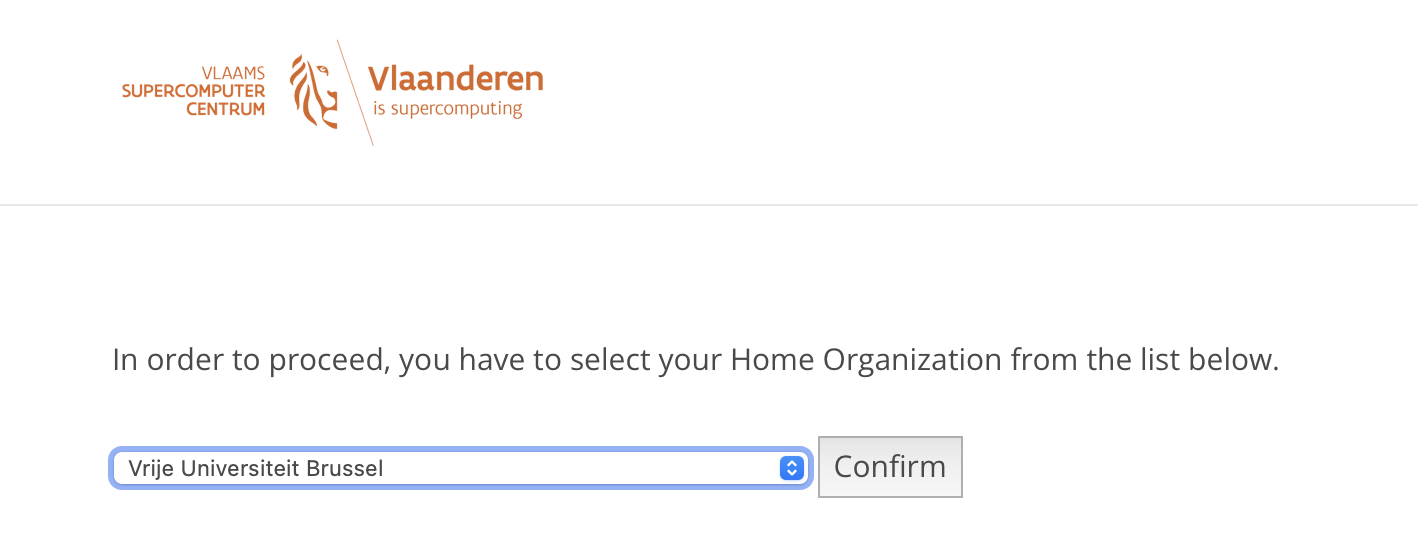
Step 2: Select VUB
Choose Vrije Universiteit Brussel as your home institution and continue.
Step 3: Log in with your VUB account
Use your normal VUB login. For most VUB staff and PhD researchers, the account request is approved automatically.
Step 4: Fill in the account request
Complete the requested details. When asked for your scientific domain, choose the most relevant category from the NWO categories. If you are not sure, choose the category that best matches your research field.
You can find more information about NWO on the NWO website.
If the form asks for an SSH key, you can skip that step or leave it for later. You do not need an SSH key to use the B-TXT toolsuite through the web portal.
Step 5: Confirm your request by email
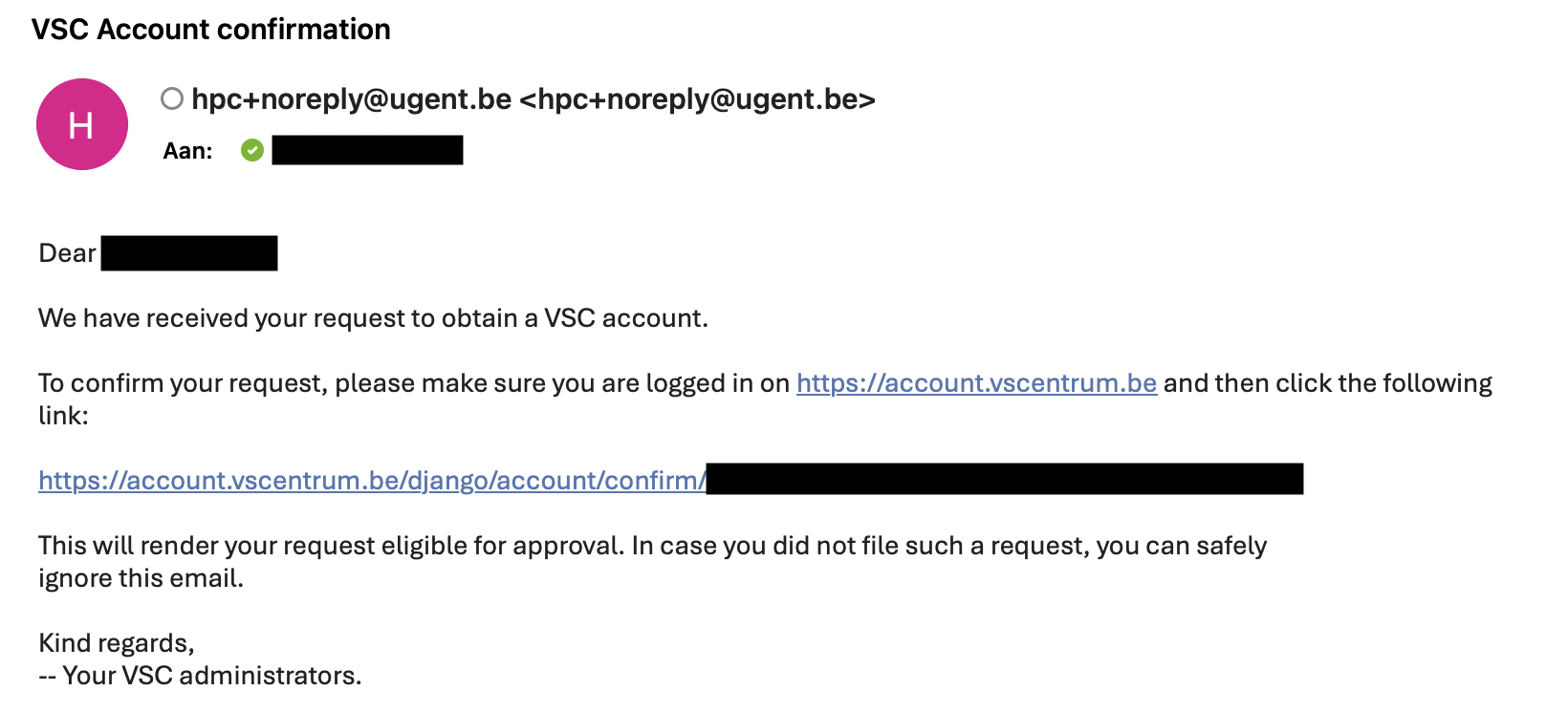
After submitting the form, you will receive a confirmation email. Open that email and click the confirmation link.
Step 6: Wait for approval
VUB staff and PhD researchers normally receive automatic approval. After you receive the approval email, wait at least 30 minutes before trying to log in. The system needs a little time to finish creating your account.
Step 7: Open the VUB-HPC portal
Go to the VUB-HPC portal.
Log in with the account flow shown on screen. You can use the portal from anywhere, but you will need to approve the login with your phone or authenticator.
Step 8: Open Interactive Apps
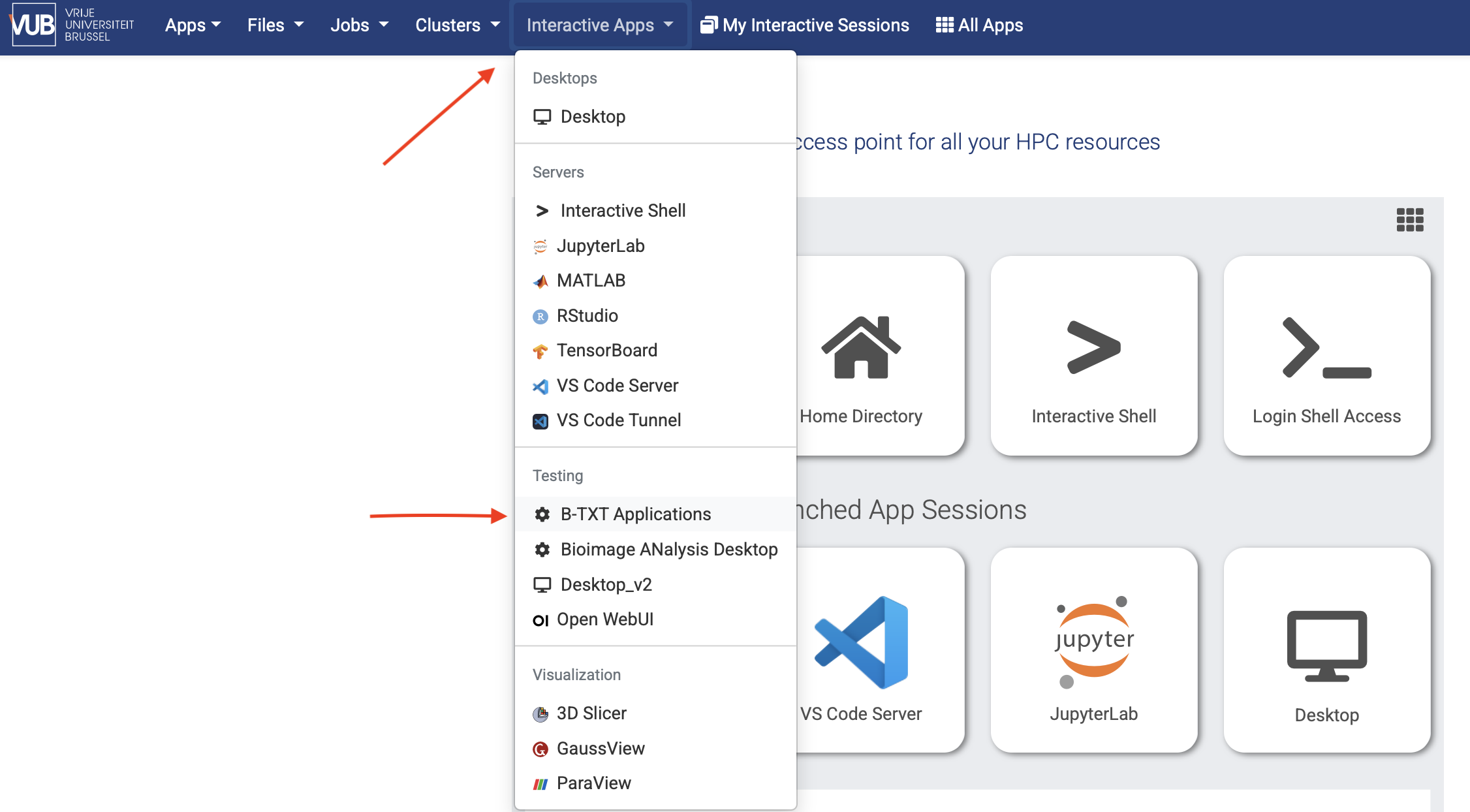
Once you are inside the portal, open Interactive Apps. This is where you can find the B-TXT toolsuite.
Step 1: Open the VSC account page
Go to the VSC account page.
If the page does not open properly, try another browser or temporarily disable browser extensions that block scripts, privacy trackers, or institutional login pages.
Step 2: Select VUB
Choose Vrije Universiteit Brussel as your home institution and continue.
Step 3: Log in with your VUB account
Use your normal VUB login. For most VUB staff and PhD researchers, the account request is approved automatically.
Step 4: Fill in the account request
Complete the requested details. When asked for your scientific domain, choose the most relevant category from the NWO categories. If you are not sure, choose the category that best matches your research field.
You can find more information about NWO on the NWO website.
If the form asks for an SSH key, you can skip that step or leave it for later. You do not need an SSH key to use the B-TXT toolsuite through the web portal.
Step 5: Confirm your request by email
After submitting the form, you will receive a confirmation email. Open that email and click the confirmation link.
Step 6: Wait for approval
VUB staff and PhD researchers normally receive automatic approval. After you receive the approval email, wait at least 30 minutes before trying to log in. The system needs a little time to finish creating your account.
Step 7: Open the VUB-HPC portal
Go to the VUB-HPC portal.
Log in with the account flow shown on screen. You can use the portal from anywhere, but you will need to approve the login with your phone or authenticator.
Step 8: Open Interactive Apps
Once you are inside the portal, open Interactive Apps. This is where you can find the B-TXT toolsuite.
Step 1: Open the VSC account page
Go to the VSC account page.
If the page does not open properly, try another browser or temporarily disable browser extensions that block scripts, privacy trackers, or institutional login pages.
Step 2: Select VUB
Choose Vrije Universiteit Brussel as your home institution and continue.
Step 3: Log in with your VUB account
Use your normal VUB login. For most VUB staff and PhD researchers, the account request is approved automatically.
Step 4: Fill in the account request
Complete the requested details. When asked for your scientific domain, choose the most relevant category from the NWO categories. If you are not sure, choose the category that best matches your research field.
You can find more information about NWO on the NWO website.
If the form asks for an SSH key, you can skip that step or leave it for later. You do not need an SSH key to use the B-TXT toolsuite through the web portal.
Step 5: Confirm your request by email
After submitting the form, you will receive a confirmation email. Open that email and click the confirmation link.
Step 6: Wait for approval
VUB staff and PhD researchers normally receive automatic approval. After you receive the approval email, wait at least 30 minutes before trying to log in. The system needs a little time to finish creating your account.
Step 7: Open the VUB-HPC portal
Go to the VUB-HPC portal.
Log in with the account flow shown on screen. You can use the portal from anywhere, but you will need to approve the login with your phone or authenticator.
Step 8: Open Interactive Apps
Once you are inside the portal, open Interactive Apps. This is where you can find the B-TXT toolsuite.
If This Tutorial Is Not For You
This tutorial is written for VUB staff and PhD researchers.
If you are a Bachelor or Master student, you may still be able to use VSC services for a course, thesis, or research project, but your professor or promoter has to request access for you. See the official VUB-HPC access documentation for those cases.
If you are not connected to VUB, check the official VSC account documentation for the correct procedure at your institution.
Getting Help
If something goes wrong while requesting your account or opening the B-TXT toolsuite, contact B-TXT first:
- Yoshi Malaise: yoshi.kris.malaise@vub.be
- Sara Budts: sara.budts@vub.be
For the complete technical documentation, see: